Create your first watcher in Watchful
Choose one thing you keep checking, tell Watchful what matters, then run a manual check. Read the result and its sources before turning on automatic checks.
1. Choose how to run AI checks
This walkthrough uses your own Gemini or OpenAI API key. In Settings, choose a provider and save its key, then select “Use … for checks” and review the data-sharing explanation. Saving a key alone does not run a watcher.
Check your provider account’s API access and billing arrangements. Provider usage is separate from Watchful Pro. Keep your key private; do not put it in watcher instructions or send it in a support email.
Using included AI credits on iPhone?
The iOS app also offers monthly subscriptions with shared AI credits and Pro. If you choose that route, follow the subscription and consent steps in the app, then continue with creating your watcher below. A credit is an amount of API usage, not one check. See the support page for how credits and restores work.
For nearby searches, set a fallback town and country. Location permission is optional. Checks may share available approximate location or the fallback town with your selected provider, including for watchers that are not explicitly location-based.
2. Create a watcher with useful instructions
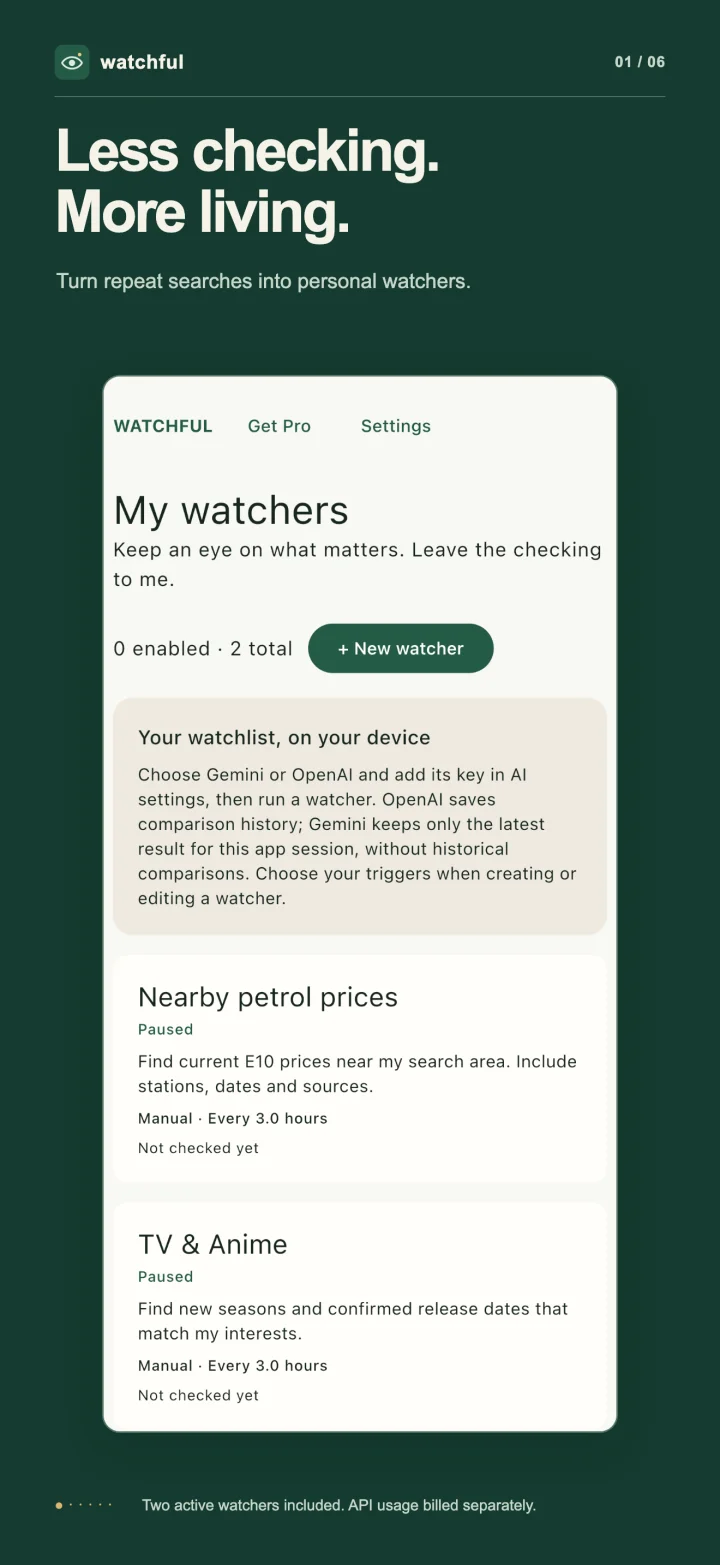
From My watchers, choose New watcher. Start with a preset or write your own instructions. Name the subject, the sources you trust and what should trigger a notification.
Example to adapt: Check the official website for [event name] in [town] for confirmed ticket-sale dates. Include the source link and the date you found. Notify me when a sale date is confirmed. If no date is confirmed, say so rather than guessing.
Replace the bracketed details with your own. A narrow question is easier to review than “tell me about events”. Avoid adding private information that the check does not need.
3. Run a manual check and read the sources
Save the watcher and run it manually before relying on automation. Open the result and follow its sources. Check that they refer to the right event, place and date, and that a confirmed announcement has not been confused with speculation.
If the result is too broad, edit the instructions and try again when the app allows another check. A successful connection test does not by itself confirm that a provider can perform live web research.
OpenAI history is saved locally. Gemini keeps only the latest result for that watcher during the current app session, without reusing or comparing earlier checks. After the app process closes, a Gemini result expires; a notification may therefore refer to a result that is no longer available. See support for current provider behaviour.
4. Choose automatic checks and notifications
Once the manual result is useful, configure the watcher’s triggers and enable the checks you want. Allow notifications if you want system alerts. Start with a frequency appropriate to the question: a ticket announcement rarely needs the same cadence as a time-sensitive local update.
Android and iOS control background execution. Checks may be delayed by power-saving settings, connectivity, permissions or provider limits. Use a manual check when an update is time-sensitive; a scheduled watcher is not a guarantee of an alert at an exact time.
Car triggers have different setup steps on Android and iPhone. Follow the car-trigger instructions if you want to add those after the first manual check works.
If your first check fails
- Confirm the selected provider and that its API key has access to the chosen model.
- Check provider limits, billing and your internet connection. There is no automatic paid fallback.
- Read the error before repeating the check. Check activity can incur provider usage.
The free app supports two active watchers. The one-time Pro purchase removes that limit but does not include AI usage. Current subscription options and prices appear in the app.
Start with one thing you keep checking
Make the instructions specific, run once and decide whether the result is useful before enabling more automation.