Your first task and reward in StarJar
Start with one small chore and a reward your child actually wants. This walkthrough takes you through setting up that first routine, reviewing a completed task and spending the stars.
1. Set up the parent area and child profile
Open StarJar and follow the setup prompts to create your child’s profile. Set your parent PIN when prompted. The PIN protects the parent area, where you manage tasks, rewards and approvals.
One profile is enough to try this routine. The free plan lets you get started; multiple child profiles and unlimited tasks and rewards are Premium features. Check the app for the current plans before buying.
2. Create one clear task
In the parent area, create a task, give it a name your child understands and choose its star value. Use a task template if it fits, or write your own. Set the frequency to match the routine.
A simple example
“Put your toys back in the box” is easier to recognise as finished than “Be tidy”. For this example, make it worth 5 stars. These are suggested values, not app defaults.
Explain what counts as finished before your child starts. Keep the first task small enough to complete together.
3. Choose a reward together
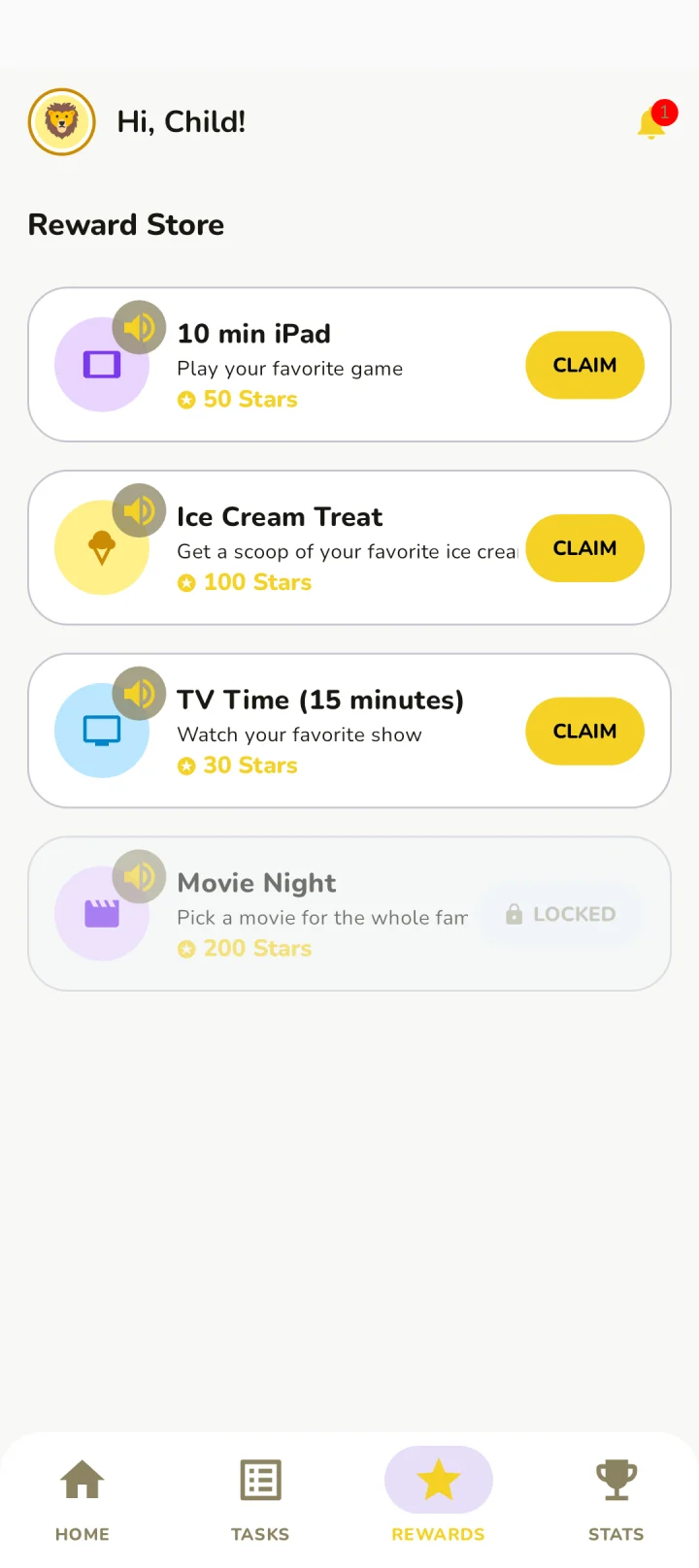
Open reward management in the parent area and add a reward. Give it a name and a star cost. Choose something you are happy to provide, such as choosing the family film.
For the example above, a 10-star reward takes two approved completions of the 5-star task. Agree that goal together so your child knows what they are saving for.
4. Complete the task, then review it
Return to your child’s view and find the task. Once the chore is done, your child marks it complete. You then review it in the parent area and approve it when it is finished.
After approval, the earned stars contribute towards the reward. If your child is not reading independently yet, use the read-aloud controls on tasks and rewards and go through the routine together.
5. Claim the reward and follow through
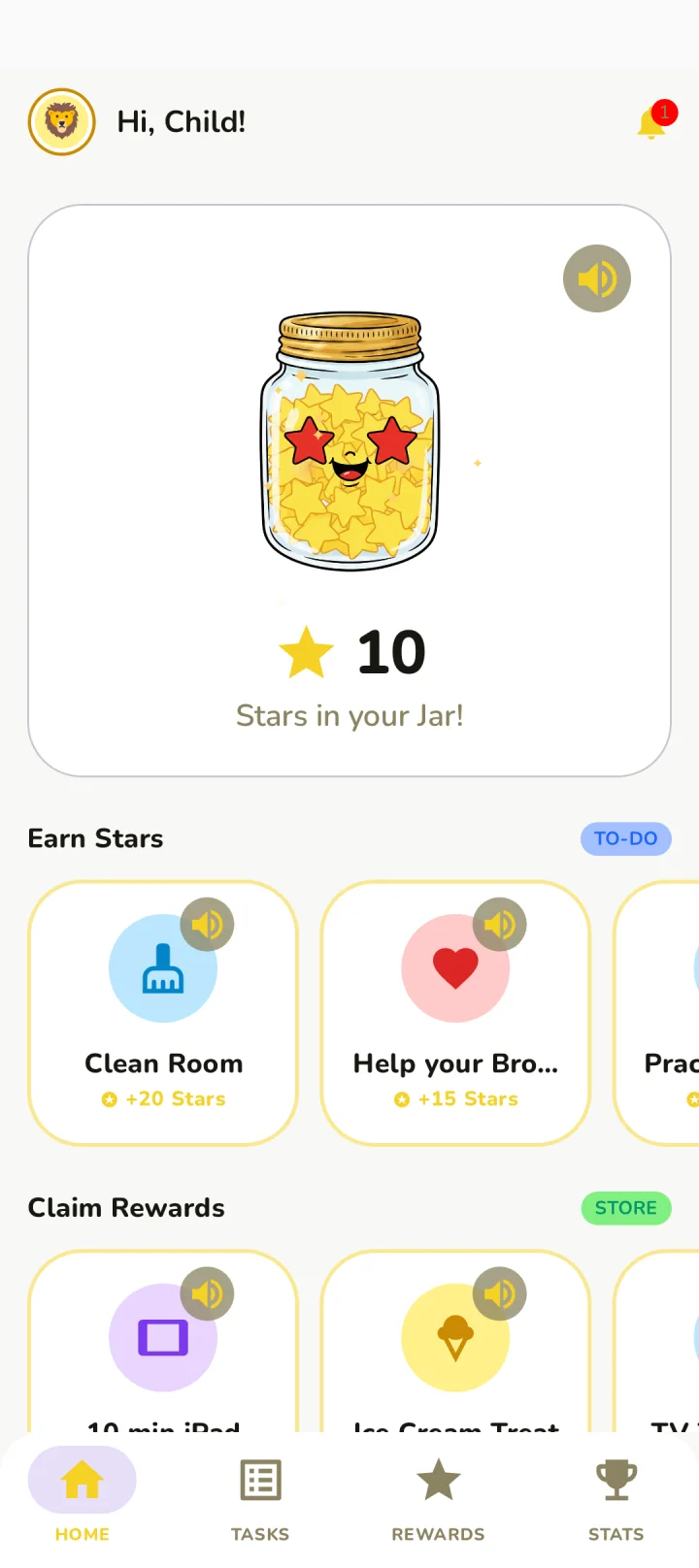
When your child has enough stars, open the rewards view together and choose the agreed reward. Follow the app’s claim flow, then provide the reward you promised.
Try this small routine before adding more tasks. If the goal feels too far away, adjust future task values or reward costs together.
If the stars do not look right
- Check that the task was approved in the parent area, rather than only marked complete by your child.
- Check the task’s star value and the reward’s cost.
- If you use multiple profiles, make sure you are looking at the right child.
For help, email James with your app version and the step that caused trouble.
Ready to try your first routine?
Pick one task, agree a reward and let your child see what their stars are working towards.