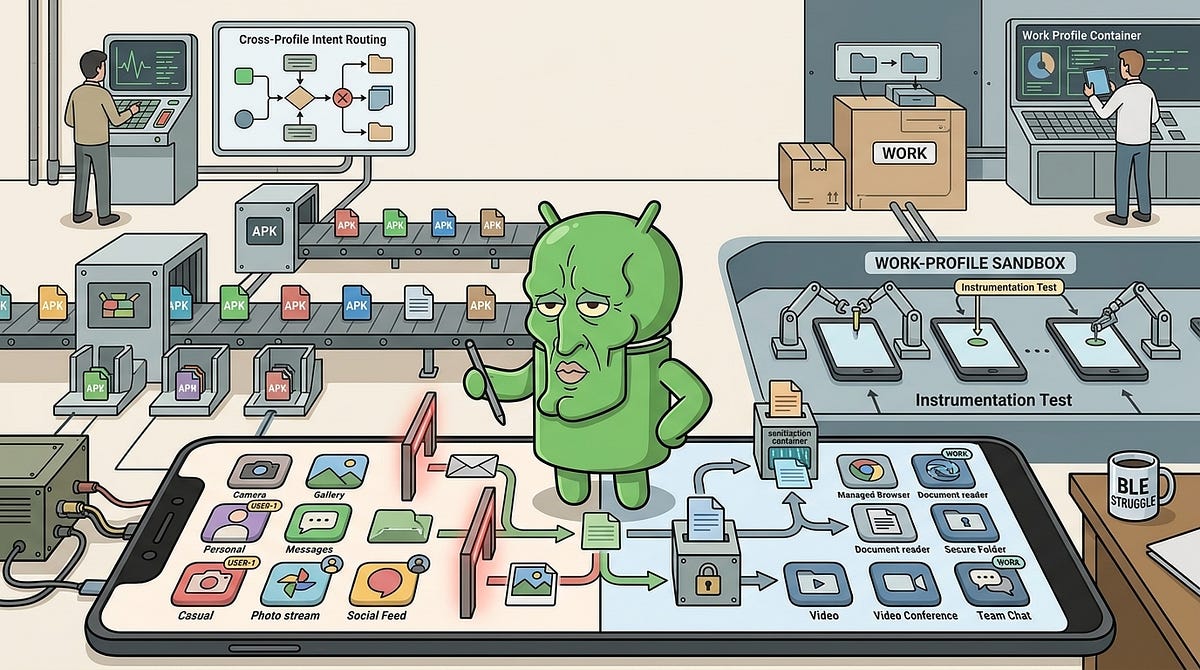
Last year, I worked on a project where we had to build not one, but two versions of the same app. One ran in the personal profile. The other ran in the work profile.
They needed to share selected information between each other, but still respect the strict boundaries enforced by Android.
On paper, this sounded manageable. In practice, it introduced a completely different layer of complexity that most Android developers never have to think about.
This article is about what I learned while building and testing apps in a work-profile environment and the practical problems that don’t show up in basic documentation.
Why Work Profiles Exist
Work profiles were introduced in Android 5.0 (API 21) as a way to solve a very real enterprise problem.
Employees want to use their personal devices at work.Companies want control over corporate data.
A work profile creates a managed environment on the same device. The IT admin controls:
- Which apps are available
- Which device features are enabled
- Which data can cross profile boundaries
To the user, it feels like two separate spaces living on one phone.
To us as developers, it means we are no longer operating in a single, predictable runtime environment.
What This Means for Us as Developers
The important thing is this:
You don’t need special APIs to “support” work profiles.You need to follow Android best practices very strictly.
Suddenly things that were previously “probably fine” can break:
- Intents may silently fail
- File URIs may become invalid
- Notification listeners may stop working
- System apps may not exist in the work profile
And here is the tricky part:You don’t control these rules. The IT admin does.
That unpredictability is what makes work-profile development interesting.
What Actually Changes in a Work Profile
When I first started working on this project, I assumed this would mostly be a deployment concern.
It wasn’t.
A work profile changes runtime behavior in subtle ways. And if your app assumes a “normal” Android environment, you will eventually hit edge cases.
Let’s break down the ones that matter most.
Intents Are No Longer Safe by Default
In a normal app, firing an intent feels safe. You assume:
- There is probably a handler.
- If not, the system will show a chooser.
- Worst case, nothing dramatic happens.
In a work profile, this assumption breaks.
By default, most intents do not cross profile boundaries. If your app fires an intent inside the work profile and there is no handler in that profile, the system will not automatically forward it to the personal profile.
And here is the important part:If there is no handler available, your app can crash.
Even if the personal profile does have a valid handler.
You cannot know in advance which intents are allowed to cross profiles. That is defined by the IT admin and can change at any time.
So the rule becomes very simple:
Never fire an intent without checking that it resolves.
val intent = Intent(AlarmClock.ACTION_SET_TIMER).apply {
    putExtra(AlarmClock.EXTRA_MESSAGE, "Focus session")
    putExtra(AlarmClock.EXTRA_LENGTH, 25)
    putExtra(AlarmClock.EXTRA_SKIP_UI, true)
}
if (intent.resolveActivity(packageManager) != null) {
startActivity(intent)
} else {
// Handle gracefully
}This is standard Android practice.
But in a work-profile environment, it becomes mandatory.
File URIs Will Betray You
This one is subtle.
Personal profile storage and work profile storage are completely separate. A file:// URI that works perfectly in one profile is invalid in the other.
If your intent crosses profiles and you attached a file URI, the receiving app simply cannot access the file.
The fix is what Android has been telling us for years anyway:
Use content:// URIs via FileProvider.
val contentUri = FileProvider.getUriForFile(
    context,
    "com.example.myapp.fileprovider",
    file
)
Content URIs are profile-aware.File URIs are not.
Again, this isn’t new Android knowledge.But work profiles turn bad habits into production failures.
NotificationListenerService Does Not Behave the Same
If your app runs in the work profile, your NotificationListenerService will be ignored.
If your app runs in the personal profile, you may not receive notifications from work-profile apps unless the IT admin explicitly allowlists your app.
That means:
- You cannot assume full visibility of notifications.
- Cross-profile notification listening can be blocked at policy level.
- You may receive partial callbacks without realizing it.
In enterprise environments, policy always wins.
Testing Is Where Reality Hits
Reading documentation is one thing.
Testing on a real device with a work profile is something else.
Android provides a sample app called TestDPC that lets you create and configure a work profile on a device. It allows you to:
- Enable or disable cross-profile intents
- Restrict default system apps
- Simulate enterprise policy restrictions
You can suddenly reproduce scenarios like:
- Map intent allowed to cross, handler exists on other profile
- Map intent not allowed to cross, handler exists locally
- Map intent not allowed to cross, no handler anywhere
These are edge cases most consumer apps never encounter.
Enterprise apps hit them constantly.
The Real Problem: Testing Across Profiles
Understanding work profiles is manageable.Testing them properly is where things become painful.
In our case, the app was not a single APK.
It was split into three parts:
- The main app
- A companion app
- An androidTest APK for instrumentation
All three had to exist in the work profile.All three had to exist in the personal profile.
Every time we wanted to test something inside the work profile, the workflow looked like this:
- Assemble the debug APK
- Assemble the androidTest APK
- Push both to the device
- Install them specifically to the work profile user
- Run instrumentation using the correct
--userflag
Do this a few times manually and you start questioning your life choices.
The real friction was not writing code.It was the repetition.
And repetition in development is a signal: automate it.
Understanding the --user Flag
--userWhen a device has a work profile, it behaves like multiple Android users internally.
If you run:
adb shell pm list usersYou’ll get something like:
UserInfo{0:Primary:13} running
UserInfo{10:Work profile:30} running
User 0 is the personal profile.
User 10 is the work profile.
If you install an APK normally with:
adb install app.apkIt installs to the primary user by default.
To install to the work profile, you must explicitly target it:
adb shell pm install --user 10 /data/local/tmp/app.apkSame for instrumentation:
adb shell am instrument --user 10 ...Without that flag, you’re not testing what you think you’re testing.
Automating the Pain Away
Instead of manually pushing and installing APKs every time, I created custom Gradle tasks to automate the process.
The idea was simple:
- Build
- Push to device
- Install to work profile
- Run instrumentation
- Done
Here’s a simplified version of what that looked like:
tasks.register<Exec>("pushDevDebugAndroidTestApk") {
    dependsOn(":app:assembleDevDebugAndroidTest")
    commandLine(
        "adb push app/build/outputs/apk/androidTest/dev/debug/app-dev-debug-androidTest.apk /data/local/tmp"
            .split(" ")
    )
}
tasks.register<Exec>("pushDevDebugApk") {
dependsOn(":app:assembleDevDebug")
commandLine(
"adb push app/build/outputs/apk/dev/debug/app-dev-debug.apk /data/local/tmp"
.split(" ")
)
}
tasks.register<Exec>("installDevDebugAndroidTestApkToWorkProfile") {
dependsOn("pushDevDebugAndroidTestApk")
commandLine(
"adb shell pm install --user 10 /data/local/tmp/app-dev-debug-androidTest.apk"
.split(" ")
)
}
tasks.register<Exec>("installDevDebugApkToWorkProfile") {
dependsOn("pushDevDebugApk")
commandLine(
"adb shell pm install --user 10 /data/local/tmp/app-dev-debug.apk"
.split(" ")
)
}
tasks.register<Exec>("connectedDevDebugWorkProfileAndroidTest") {
dependsOn(
"installDevDebugAndroidTestApkToWorkProfile",
"installDevDebugApkToWorkProfile"
)
commandLine(
"adb shell am instrument --user 10 -w dev.jamescullimore.app.test/androidx.test.runner.AndroidJUnitRunner"
.split(" ")
)
}Now I could run:
./gradlew connectedDevDebugWorkProfileAndroidTestAnd everything was handled in the correct order.
No manual pushing.No forgetting the --user flag.No installing to the wrong profile by accident.
It turned a frustrating workflow into a single command.
And in enterprise development, that kind of automation pays for itself very quickly.
Conclusion
Work profiles don’t require special APIs.
They require discipline.
They force you to:
- Properly resolve intents
- Stop using file URIs
- Expect system apps to be missing
- Accept that IT policy can override assumptions
- Test in environments that behave differently than your local emulator
Most Android apps never encounter these constraints.
But when you build for enterprise, you operate in a more controlled and restricted ecosystem.
And that ecosystem rewards developers who:
- Follow best practices strictly
- Automate repetitive workflows
- Test edge cases intentionally
For me, the biggest lesson wasn’t about work profiles themselves.
It was about respecting the environment your app runs in.
Because once you stop assuming a “normal” Android device, your code becomes significantly more robust.